DMARC Rollout: Protect Business Email Without Blocking Invoices
A practical DMARC rollout checklist: inventory legitimate senders, verify SPF and DKIM alignment, review reports, test delivery, and approve enforcement with evidence.
An email security change should not become the reason a customer never receives an invoice. Before enforcing DMARC on your business domain, prove that the systems sending legitimate mail can pass the checks—not just the employee mailboxes your IT team uses every day.
For Southern California businesses coordinating proposals, purchase orders, service appointments, and construction documentation, email authentication deserves a controlled rollout. The objective is a defensible domain policy with documented sender ownership and delivery evidence. The workflow below is a recommended implementation and acceptance process, not a customer incident report or a guarantee of inbox placement.
What DMARC checks—and why alignment matters
Google documents DMARC as a DNS-based policy that tells receiving mail servers how to handle messages that fail the relevant authentication checks, with reporting available to help identify authentication issues and malicious activity.[1] Treat that policy as a managed control, not a record to copy into DNS and forget.
A message passes DMARC when at least one authentication path both passes authentication and aligns with the domain in the visible From address: SPF with SPF alignment, or DKIM with DKIM alignment.[1] A third-party service showing an isolated SPF or DKIM pass is therefore not sufficient acceptance evidence. Ask which domain passed and whether it aligns with the business domain the recipient sees.
Google recommends starting with a policy of none and moving toward quarantine or reject as the organization understands its mail authentication results.[1] Separate observation from enforcement in the project plan. Do not describe a monitoring-only rollout as completed enforcement.
1. Inventory every authorized sender before changing policy
Build the inventory with finance, operations, sales, marketing, and the website administrator—not only the email administrator. Ask each department to demonstrate the applications it uses to send messages with a company address. Reconcile that list with provider settings and observed reports rather than assuming the first list is complete.
- Employee email: record the primary platform, company domains, aliases, and the administrator responsible for authentication configuration.
- Business applications: investigate accounting, invoicing, customer relationship management, scheduling, and support systems. Include occasional workflows such as statements and renewal notices.
- Website messages: test the contact form, acknowledgment messages, password resets, and other automated notices actually used by the business.
- Infrastructure and devices: review approved scanner, monitoring, and application notification paths. Record the sending service rather than just the device name.
- Outside services: identify marketing providers and other authorized senders, their business owners, and the vendor contact who can resolve authentication problems.
For each stream, record the visible From domain, the envelope sender domain, the DKIM signing domain where present, the sending platform, the business purpose, and the responsible owner. Keep passwords, private signing keys, and administrative tokens out of the inventory.
Do not authorize an unknown sender just to improve a report
Require a business owner to confirm that a service is legitimate before modifying authentication settings for it. Classify observations as authorized, unauthorized, or unresolved. A cleaner-looking report is not a reason to expand who may send for the company.
2. Inspect DNS and provider configuration as one change
Have the authorized administrator export or record the existing authentication-related DNS settings before editing. Identify who controls DNS, who controls each sending platform, and who approves the change. Use the installed providers' instructions to configure SPF and DKIM; do not improvise a universal record for every vendor.
Google specifically directs organizations to check authentication for third-party senders before enabling DMARC.[1] Require configuration evidence from each provider and an actual message test. A vendor's statement that its platform supports authentication does not prove that your domain has been configured correctly.
- Record ownership: identify the exact domain being changed and whether subdomain policy needs a separate decision.
- DNS entry: verify the saved host name and TXT value after the change, using the DNS host's formatting instructions.
- Alignment: document the intended SPF or DKIM alignment path for each legitimate stream.
- Change recovery: retain the previous configuration, an authorized rollback procedure, and an escalation contact.
Google warns that strict alignment can cause messages from associated subdomains to be rejected or sent to spam.[1] Choose alignment settings deliberately. Do not tighten them merely because a template labels them more secure.
3. Start with reporting and assign someone to read it
Create a dedicated reporting destination and name its operational owner. Google recommends a dedicated mailbox, group, or specialist reporting service rather than an individual's everyday inbox; it also notes that sending reports to a different domain requires an additional DNS authorization record at that destination domain.[1] Confirm any external reporting service's setup requirements and access controls before using it.
Google's rollout guidance calls for gradual deployment and daily review of DMARC reports to identify outgoing-mail and sender issues.[2] Make that review an assigned task with an issue log. Publishing a reporting address without a review owner leaves the rollout without a decision process.
Choose an observation period that includes the business workflows in scope. As a project control, explicitly include infrequent invoicing, statement runs, campaigns, and seasonal notices rather than declaring success from a few routine employee messages. Record streams that have not yet been observed or tested as exceptions.
4. Test business transactions, not just a DNS score
Use approved test recipients and non-sensitive sample content. For every authorized stream, run the real sending workflow and retain evidence appropriate to the organization's privacy requirements.
- Trigger the workflow: send a test invoice, website acknowledgment, or other representative message through the application being accepted.
- Inspect received headers: capture the receiving system's authentication results, visible From domain, envelope sender, and relevant DKIM signing domain. Have the administrator explain the DMARC result.
- Confirm recipient experience: check actual receipt and folder placement with the test recipient. Record the observed outcome rather than inferring delivery from a sender-side success screen.
- Reconcile reporting: compare available report data with the expected sender and test period. Document reporting gaps instead of inventing coverage.
- Resolve exceptions: assign failed or ambiguous results to the application owner and provider. Retest the affected stream after changes.
Include forwarding or mailing-list paths when the business actually depends on them, and document the results separately. Do not extrapolate from direct-delivery tests to untested mail paths. Treat authentication evidence and observed delivery as separate acceptance items; neither should be replaced by a single green dashboard score.
5. Enforce only after the business accepts the evidence
Google recommends progressing from observation to quarantine or reject as reports are reviewed; its guidance warns that reject means messages failing DMARC are rejected by receiving servers rather than delivered.[2] Make the enforcement decision a documented change approval, not an automatic reaction to the first clean report.
Before each enforcement change, require an accepted sender inventory, passing evidence for critical workflows, named owners for exceptions, a recipient-support procedure, and a rollback decision maker. Set a review window that matches staffing and business activity. Avoid making the change immediately before an unattended period or a critical billing run.
After the change, repeat the critical transactions, review available authentication reports, and check delivery complaints and provider logs. Define who can authorize corrective action. Do not promise that DNS rollback will restore every recipient's behavior immediately.
Closeout should make the next sender change safer
Retain the approved policy, DNS change record, sender inventory, test results, unresolved exceptions, report destination, review schedule, and provider contacts in a controlled documentation repository. Keep sensitive header samples restricted and remove unnecessary message content from project evidence.
Require an authentication review when adding a marketing platform, replacing accounting software, migrating email, or changing website delivery. Make the application owner responsible for requesting that review before production sending begins. Do not treat DMARC as a substitute for account security, payment verification, or staff procedures.
Enforce the policy after proving the legitimate senders—not before discovering them.
How SkaiCloud Network helps
SkaiCloud Network can help scope managed IT and cloud email requirements, coordinate domain and vendor responsibilities, and document acceptance testing and operational handoff. Define which party owns DNS, application configuration, report review, and ongoing changes before work begins.
Before approving a DMARC enforcement change, choose one invoice workflow and one automated website message and ask for their authentication and delivery evidence. Discuss email authentication planning and managed IT coordination with SkaiCloud Network to establish a controlled rollout rather than a blind DNS change.
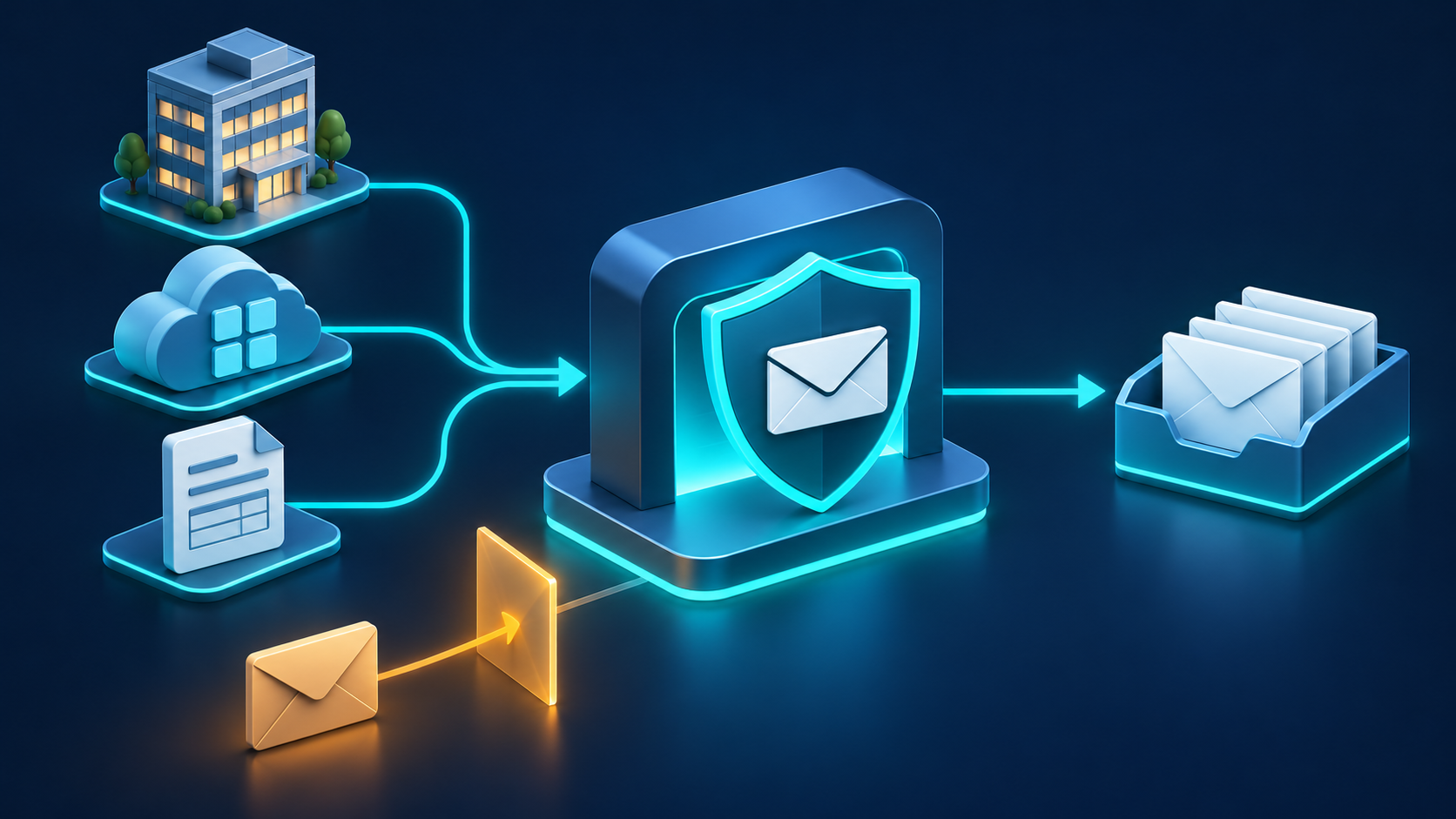
Featured image: original conceptual illustration, not a customer environment, live mail-flow diagram, or incident photograph.